










The Cover Tab
When you open the editor for any book, you will see three main tabs at the top: Content, Cover, and Theme. The Cover tab is where all cover design happens. Selecting it switches the editor into cover mode, where you can browse templates, generate AI covers, and preview your current selection.
Two Approaches to Cover Design
Authorio gives you two ways to create a professional book cover:
Templates
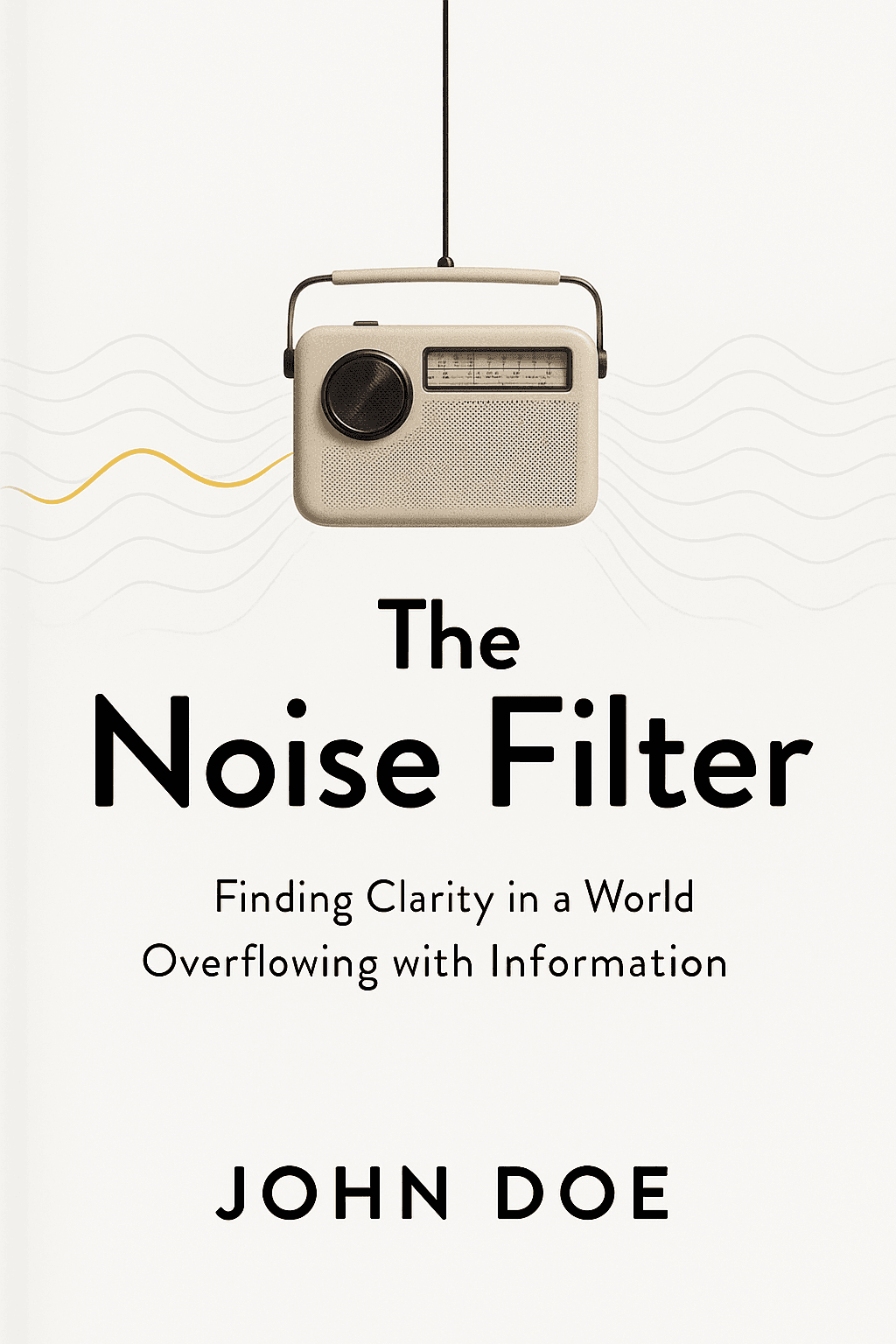
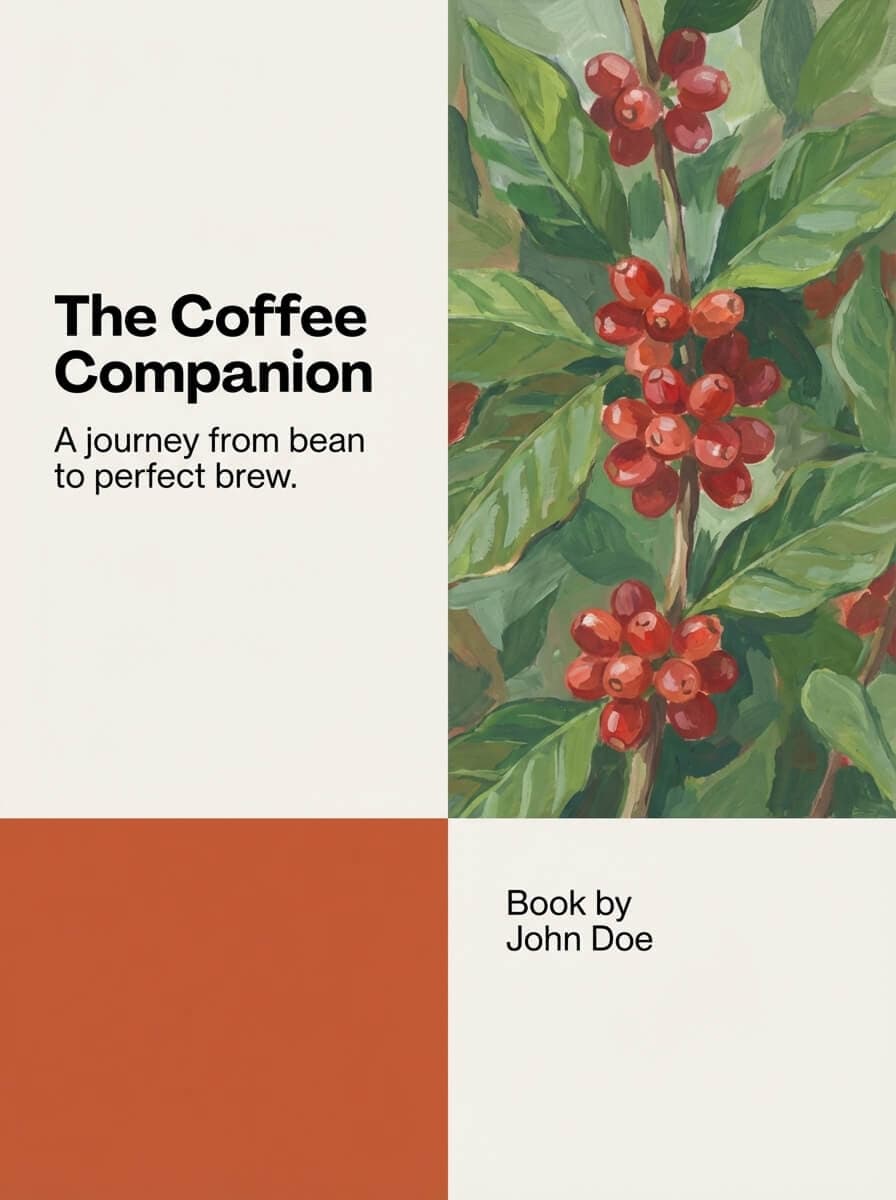
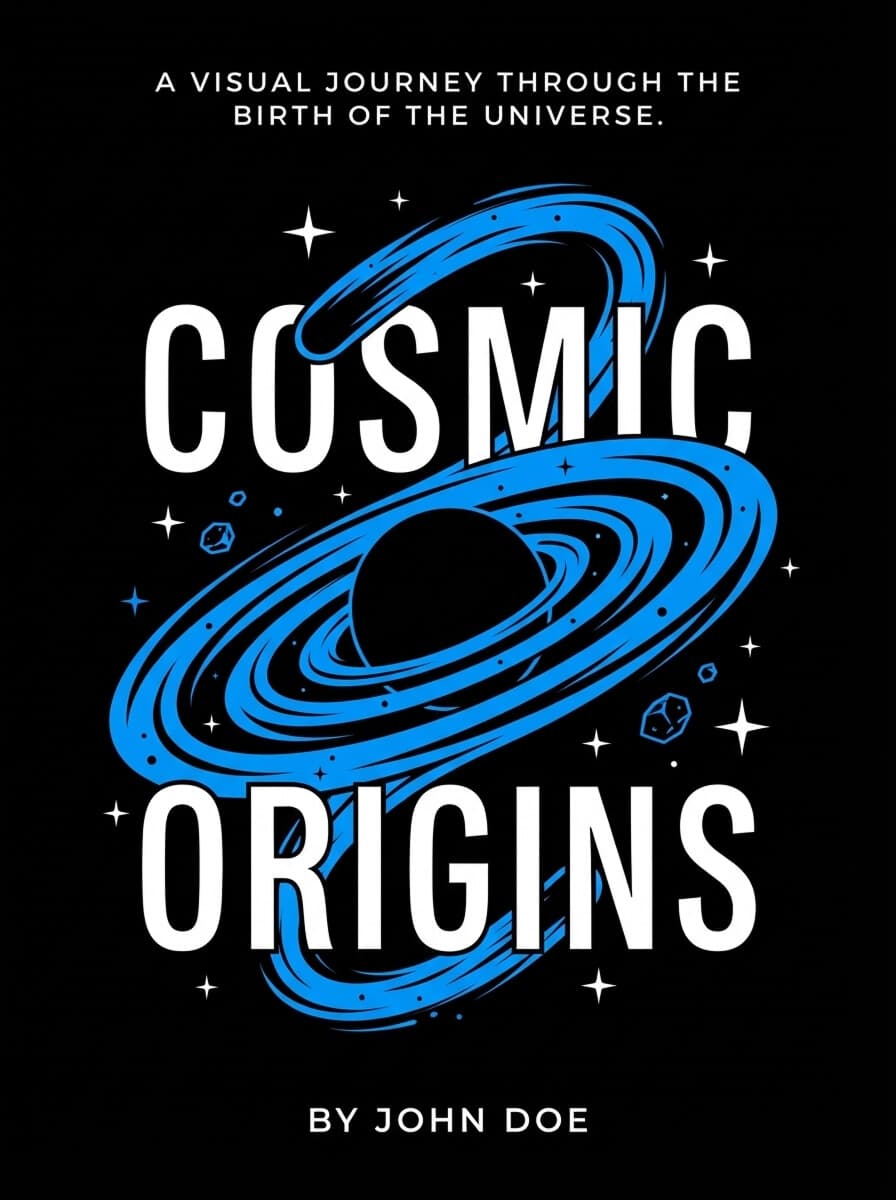
The template gallery contains 23+ professionally designed cover templates spanning genres like business, wellness, lifestyle, science, education, and personal development. Each template is a complete, ready-to-use cover design. Browse the gallery, select the one that fits your book's subject and tone, and it becomes your active cover immediately.
AI Generation
If you want something entirely custom, switch to the AI Generate view. Describe the cover you want in a text prompt, and Authorio generates a unique cover using a two-stage AI pipeline. First, your prompt is enhanced for optimal image generation. Then, the AI produces your cover image. This approach gives you covers that are one-of-a-kind and tailored to your specific concept.
Selecting and Customizing Covers
When you select a template from the gallery, it receives a blue highlight ring to confirm your choice. A checkmark icon appears on the selected template, and the preview panel on the right updates to show the full-size version. Covers use a standard 6:9 aspect ratio, which is the industry standard for book covers.
You can switch between templates and AI-generated covers freely. Your most recent selection is always the active cover that will appear in your exported book.
Cover Preview
The right side of the Cover tab displays a larger preview of your currently selected cover. This gives you a clear view of how the cover will look at full size before you export. The preview updates instantly whenever you select a new template or receive a generated cover from the AI.
Was this article helpful?