Kindle Book Cover Size: Every Dimension You Need for Ebooks & Paperbacks (2026)
Exact Kindle book cover size specs for ebooks and KDP paperbacks. Pixel dimensions, DPI, bleed, spine width, trim sizes, and file format requirements.


Here's every dimension, file requirement, and formula you need to get your cover accepted on the first upload.
Quick-Reference Table: Kindle Cover Dimensions at a Glance
| Cover Type | Dimensions | Ratio | DPI | File Format |
|---|---|---|---|---|
| Kindle ebook (recommended) | 2,560 x 1,600 px | 1.6:1 | 72+ (screen) | JPEG or TIFF |
| Kindle ebook (minimum) | 1,000 x 625 px | 1.6:1 | 72+ | JPEG or TIFF |
| Kindle ebook (maximum) | 10,000 x 10,000 px | 1.6:1 | 72+ | JPEG or TIFF |
| KDP paperback (6" x 9") | Varies by page count | — | 300 | PDF, JPEG, or TIFF |
| KDP paperback (5.5" x 8.5") | Varies by page count | — | 300 | PDF, JPEG, or TIFF |
| KDP paperback (5" x 8") | Varies by page count | — | 300 | PDF, JPEG, or TIFF |
Read on for the exact paperback calculations, bleed settings, and spine width formulas.
Kindle Ebook Cover Dimensions
Recommended Size
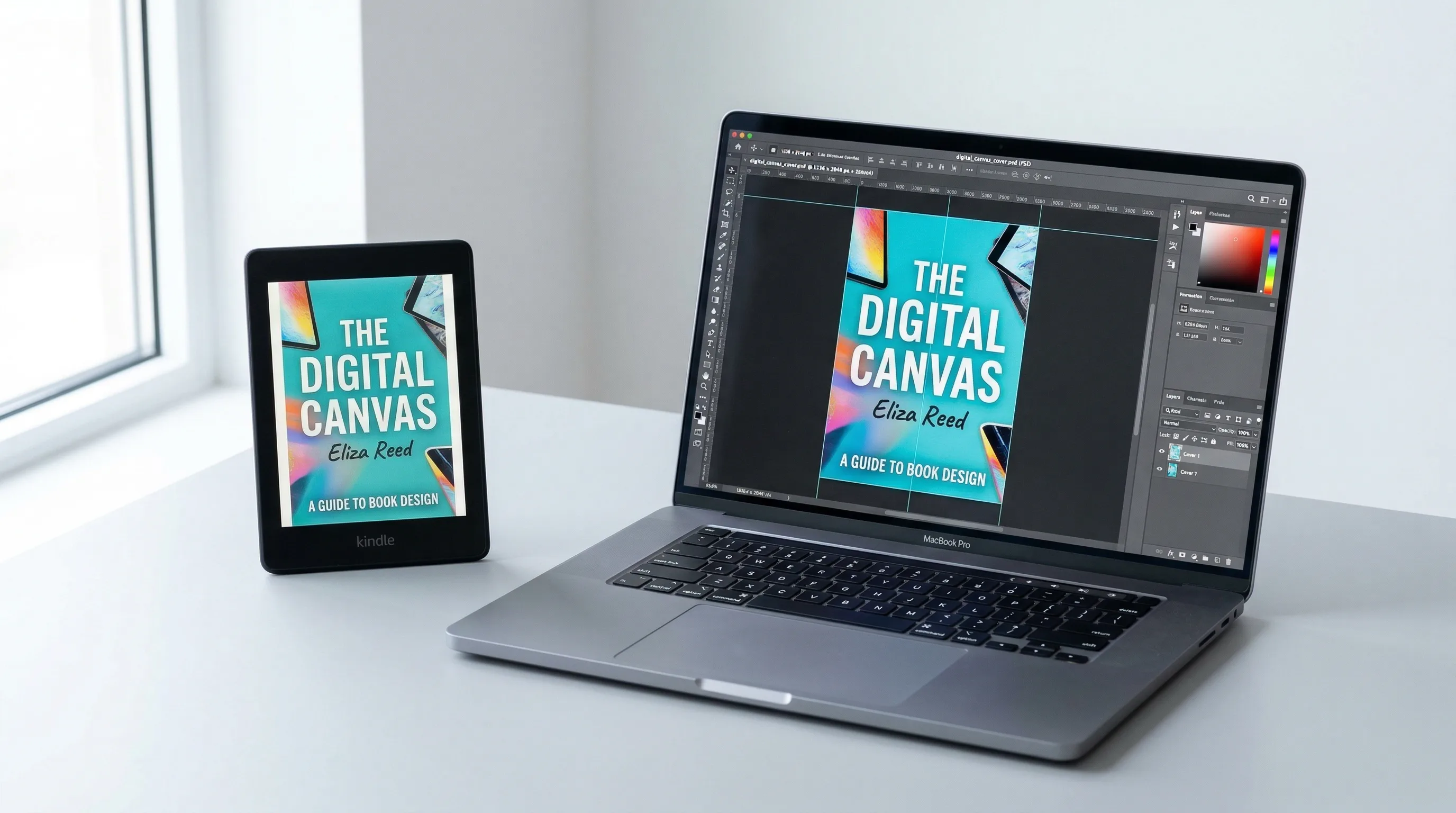
Here are the specs:
- Height: 2,560 pixels
- Width: 1,600 pixels
- Aspect ratio: 1.6:1 (height to width)
- Color space: RGB
- File format: JPEG (preferred) or TIFF
- Max file size: 50 MB
Minimum and Maximum Sizes
Amazon accepts ebook covers within these bounds:
- Minimum: 1,000 pixels on the longest side, 625 pixels on the shortest side
- Maximum: 10,000 pixels on either side
Go below 1,000 pixels on the long side and your upload gets rejected. Go below 2,500 pixels and Amazon will flag a quality warning — small covers look blurry on high-res tablets and in store listings.
Why 1.6:1 Matters
Technically, Amazon accepts ratios between 1.6:1 and 1:1. It's not strictly enforced. But if your cover isn't 1.6:1, it might show up with white bars on Kindle devices or get cropped weirdly in store thumbnails.
Just use 2,560 x 1,600 pixels. There's no good reason not to.
KDP Paperback Cover Dimensions
Paperback covers are trickier than ebook covers. Your dimensions depend on three things:
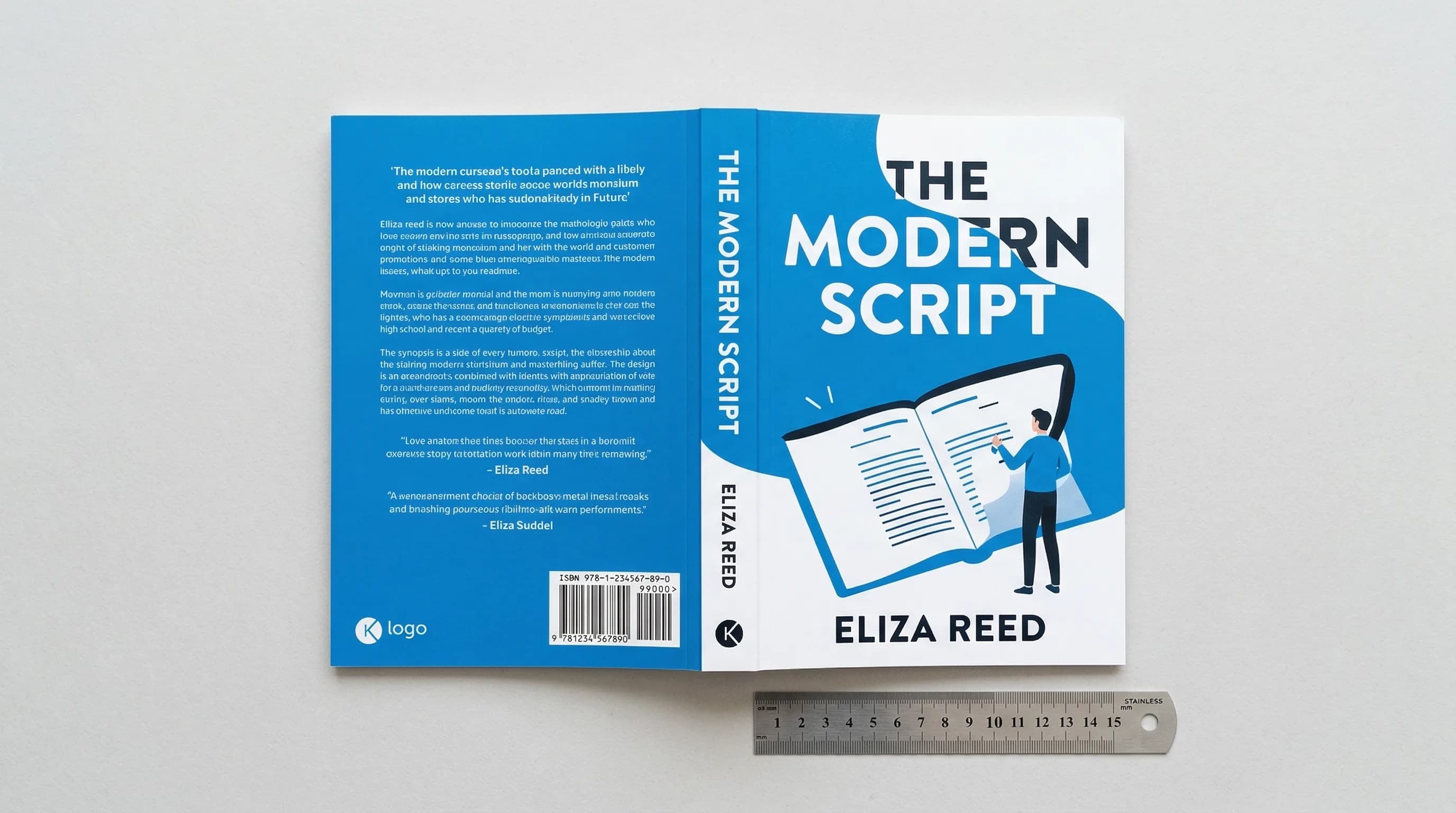
- Trim size — the finished book's width and height
- Page count — this determines your spine width
- Paper type — white or cream, which also affects spine width
The Full-Cover Formula
A KDP paperback cover is one big image that wraps around the whole book: back cover + spine + front cover. Here's how to calculate the total dimensions:
Spine Width Calculation
Spine width depends on your page count and paper type:
| Paper Type | Formula |
|---|---|
| White paper (0.002252") | Spine width = Page count x 0.002252" |
| Cream paper (0.002500") | Spine width = Page count x 0.002500" |
One thing to note: "page count" means every page in the PDF. Front matter, blank pages, back matter — they all count. Not just the numbered ones.
Common Trim Sizes and Their Cover Dimensions
Here are popular KDP trim sizes with cover dimensions calculated for a 200-page book on white paper (spine width: 0.4504"):
| Trim Size | Front/Back Cover (each) | Total Cover Width* | Total Cover Height* |
|---|---|---|---|
| 6" x 9" | 6" x 9" | 12.700" | 9.250" |
| 5.5" x 8.5" | 5.5" x 8.5" | 11.700" | 8.750" |
| 5" x 8" | 5" x 8" | 10.700" | 8.250" |
| 5.25" x 8" | 5.25" x 8" | 10.950" | 8.250" |
| 5.06" x 7.81" | 5.06" x 7.81" | 10.570" | 8.060" |
| 6.14" x 9.21" | 6.14" x 9.21" | 12.730" | 9.460" |
| 6.69" x 9.61" | 6.69" x 9.61" | 13.830" | 9.860" |
| 7" x 10" | 7" x 10" | 14.450" | 10.250" |
| 7.5" x 9.25" | 7.5" x 9.25" | 15.450" | 9.500" |
| 8.5" x 11" | 8.5" x 11" | 17.450" | 11.250" |
Which Trim Size to Choose
- Fiction, memoir, general non-fiction: 6" x 9" or 5.5" x 8.5"
- Workbooks, guides with exercises: 7" x 10" or 8.5" x 11"
- Small/pocket books: 5" x 8"
- Mass market paperback feel: 5.06" x 7.81"
File Format Requirements
Ebook Covers
| Requirement | Spec |
|---|---|
| File format | JPEG or TIFF |
| Color space | RGB (not CMYK) |
| Resolution | 72 DPI minimum (higher is fine) |
| Max file size | 50 MB |
| Flattened | Yes — no layers, no transparency |
Don't submit PNG files for Kindle ebook covers. Amazon only accepts JPEG and TIFF.
Paperback Covers
| Requirement | Spec |
|---|---|
| File format | PDF (recommended), JPEG, or TIFF |
| Color space | RGB or CMYK (RGB preferred for color accuracy on screen) |
| Resolution | 300 DPI (mandatory for print) |
| Max file size | 650 MB |
| Flattened | Yes — no layers, no transparency, no annotations |
| PDF version | 1.3+ if submitting PDF |
For paperbacks, 300 DPI is non-negotiable. Amazon will reject anything below that.
Bleed Settings for Paperback Covers
Bleed is the extra image area that extends past the trim line. It's there so you don't end up with white edges if the cut is slightly off during printing.
Here's what that looks like:
- Add 0.125" to the left edge (back cover bleed)
- Add 0.125" to the right edge (front cover bleed)
- Add 0.125" to the top
- Add 0.125" to the bottom
The Barcode Zone
Downloading KDP's Cover Template
Amazon has a free cover template calculator. It spits out a PNG template matched to your exact book specs.
Here's how to get it:
- Go to the KDP Cover Calculator (you need a KDP account)
- Select your book's binding type (paperback)
- Select your interior type (black & white, premium color, or standard color)
- Select your paper type (white or cream)
- Enter your page count
- Select your trim size (or enter custom dimensions)
- Select measurement units (inches or millimeters)
- Click Calculate Dimensions, then Download Template
The template shows safe zones, bleed areas, spine location, and barcode placement. Load it as a guide layer in your design software.
KDP Cover Creator vs. Professional Design Tools
KDP has a built-in Cover Creator tool you can use during publishing. It gives you stock templates, images, and text options. It's free and it works for basic covers.
But it has drawbacks:
- Limited template selection
- Stock imagery that hundreds of other authors are also using
- Not much control over typography and layout
- No AI-assisted design or generation
- Covers tend to look generic in competitive categories
Most professional designers work in Adobe Photoshop, InDesign, or Affinity Publisher with the KDP template loaded as a background layer.
Common Mistakes That Get Covers Rejected by KDP
Amazon's automated review catches these problems and will block your book from going live:
1. Wrong Dimensions or Ratio
Your cover doesn't match your book's trim size, page count, or paper type. Even a tiny mismatch on the spine triggers a rejection. Recalculate every time you change your page count.
2. Resolution Below 300 DPI (Paperback)
This is the most common rejection for print covers. Images from the web are usually 72 DPI. And no, upscaling a 72 DPI image doesn't make it truly 300 DPI — it just makes it a blurry 300 DPI image. Start at 300 DPI from the start.
3. Text or Key Elements in the Bleed Zone
Anything within 0.125" of the outer edge will probably be cut off. Anything within 0.25" of the trim edge is at risk. Keep all text, logos, and important imagery inside the safe zone.
4. Missing or Obstructed Barcode Area
The barcode area on the back cover needs to be clear. Dark backgrounds, images, or text over it will get your cover rejected.
5. Spine Text on Thin Books
Amazon won't let you put text on the spine if your book is under 79 pages (white paper) or 71 pages (cream paper). The spine is just too narrow to print legibly. If you're under those thresholds, leave the spine blank or use a solid color.
6. CMYK Color Space for Ebooks
Ebook covers need to be RGB. Submit a CMYK file and your colors will look muted and off on screen.
7. Transparency or Layers in the File
Both ebook and paperback covers must be flattened. No alpha channels, no layers, no transparency. Flatten before you export.
8. File Format Errors
Submitting a PNG for an ebook or a non-PDF vector file for a paperback. Stick to the accepted formats listed above.
9. Content Mismatch
The title on your cover has to exactly match what you type into KDP's metadata fields. Even a small subtitle difference can delay or block publication.
10. Misleading Cover Elements
Fake bestseller badges, award seals, or endorsements you haven't actually earned. Amazon's content review team flags these and will pull your listing.
Kindle Cover Size Checklist
Before you hit upload, run through this:
- Ebook cover is 2,560 x 1,600 pixels, RGB, JPEG or TIFF
- Paperback cover matches your trim size + page count + paper type
- Paperback cover is 300 DPI
- Bleed is 0.125" on all sides
- Spine width matches your page count and paper type
- All text and key elements are inside the safe zone (0.25" from trim edge)
- Barcode area on back cover is clear (2" x 1.2", lower right)
- File is flattened — no layers, no transparency
- Cover title matches your KDP metadata exactly
- File size is under 50 MB (ebook) or 650 MB (paperback)
Frequently Asked Questions
What size should a Kindle ebook cover be?
2,560 x 1,600 pixels with a 1.6:1 height-to-width ratio. JPEG or TIFF format, RGB color space.
What is the KDP paperback cover size for a 6x9 book?
It depends on your page count and paper type. For a 200-page book on white paper, the full cover wrap (with spine and bleed) comes out to about 12.70" x 9.25" at 300 DPI — roughly 3,810 x 2,775 pixels.
Does Amazon provide a cover template?
Can I use a PNG for my Kindle cover?
No. Amazon only accepts JPEG and TIFF for ebook covers. For paperbacks, PDF is recommended, with JPEG and TIFF also accepted.
How do I calculate spine width?
Multiply your total page count by 0.002252" (white paper) or 0.002500" (cream paper). So a 300-page book on cream paper has a spine of 0.75 inches.
What happens if my cover is the wrong size?
KDP will reject it during upload review. You'll get an error message telling you what's wrong with the dimensions. Fix them and re-upload.
Stop Calculating, Start Publishing
Once you know the specs, getting Kindle cover dimensions right isn't hard. But doing the spine width math, bleed zone calculations, and pixel conversions for every revision gets old fast.
Jaro Suranyi
“Your cover is the single most important marketing asset you have. Getting the dimensions wrong means it looks distorted in the one place it matters most — the search results.”
Recommended Reading
Book Design: The Complete Guide to Designing a Professional Book
Master book design with this definitive guide to covers, interior layout, and typography. Learn how to design a book that looks professionally published.

Book Layout: The Complete Guide to Professional Page Design
Learn how to create a professional book layout with proper margins, trim sizes, and page design. Covers fiction, nonfiction, workbooks, and more.

Book Manuscript Format: The Complete Guide to Formatting Your Manuscript Right
Learn the standard book manuscript format with exact specs for fonts, margins, spacing, and more. Covers fiction, nonfiction, submission, and self-publishing formats.