KDP Formatting: The Complete Guide to Publishing on Amazon in 2026
Learn KDP formatting for ebooks, paperbacks & hardcovers. Step-by-step specs for margins, trim sizes, file types & common errors to avoid.


You finished the manuscript. Great. Now you need to turn that Word document into something Amazon will actually accept — and display correctly on every Kindle, and print without cutting off your chapter headings.
That's KDP formatting. And it trips up more self-published authors than any other step.
The good news? The requirements are predictable. Once you know what Amazon wants, the process is pretty straightforward. Let's go through it.
What Is KDP Formatting?
KDP formatting means preparing your manuscript files to meet Amazon's technical specs. Margins, fonts, table of contents structure, image resolution — all of it.
The specs are well-documented. We'll break them down format by format below, then walk through the workflow.
KDP Ebook Formatting
Ebook formatting is a different world from print. Kindle ebooks use reflowable text — the reader controls font size, line spacing, and margins on their device. Your job is to give Amazon a clean, well-structured file that looks good at any screen size.
Accepted File Formats
KDP accepts four file types for ebook uploads:
- EPUB — The best option. Gives you the most control over layout, styling, and metadata. Use this if you care about how your ebook looks.
- DOCX — Microsoft Word format. KDP converts it automatically, but the conversion can mess up spacing, break tables, and strip formatting.
- KPF — Kindle Package Format, made with Kindle Create (Amazon's free desktop tool). Works well for image-heavy books or fixed-layout content.
- HTML — Raw HTML with CSS. Maximum control, but you need to know web development.
Reflowable Text Requirements
Kindle ebooks are reflowable by default. Here's what that means in practice:
- Don't set fixed page sizes. There are no "pages" — just a continuous flow of content.
- Use relative font sizing (percentages or ems), not fixed point sizes. Readers override your font size anyway.
- Avoid hard page breaks except before new chapters. Too many forced breaks create awkward blank screens on smaller devices.
- Don't use tabs or manual spacing for indentation. Set paragraph indentation through styles or CSS.
- Keep tables simple. Complex multi-column tables break on small screens. Stick to 2-3 columns max, or convert them to lists.
Table of Contents
Every Kindle ebook needs a working table of contents. Amazon checks for two types:
-
HTML TOC (required): An actual page inside your ebook with clickable links to each chapter. It needs real anchor links — not just a static list of chapter names and page numbers.
-
NCX/NAV TOC (required): A behind-the-scenes navigation structure in your EPUB metadata. This powers the "Go to" menu on Kindle devices. Most EPUB editors generate this automatically.
If your TOC is missing or broken, KDP flags it during upload. Some books slip through without a proper TOC, but readers leave bad reviews about navigation. Not worth it.
Image Handling
- Images must be inline (in the content flow), not floating or absolutely positioned.
- Maximum file size: 5 MB per image.
- Recommended resolution: 300 DPI for photos and detailed illustrations. Simple graphics can get away with 150 DPI.
- Supported formats: JPEG, PNG, GIF, BMP, TIFF, SVG.
- Amazon compresses images during conversion. Start with the highest quality files you have.
- Cover image should be at least 2,560 x 1,600 pixels (1.6:1 ratio). See our guide on Kindle book cover size for the full specs.
Font Embedding
Kindle is strict about fonts:
- You can't force a specific body font. Amazon overrides body text with the reader's chosen font on most devices.
- Embedded fonts only work reliably for headings, drop caps, and special characters.
- If you need a specific font for design elements, embed it in your EPUB — but test on multiple devices using KDP Previewer.
- Stick to common fonts for body text. Don't count on a decorative font looking right across all Kindle hardware.
Front and Back Matter
At minimum, your Kindle ebook should include:
- Title page
- Copyright page
- Table of contents
- Dedication or epigraph (optional)
- About the author
- Also by the author (with links to your other Amazon books)
- Call to action (email list signup, review request)
Amazon gives extra weight to back matter that links to your other books. That "Also by" section is one of the best internal marketing tools on the platform.
KDP Paperback Formatting
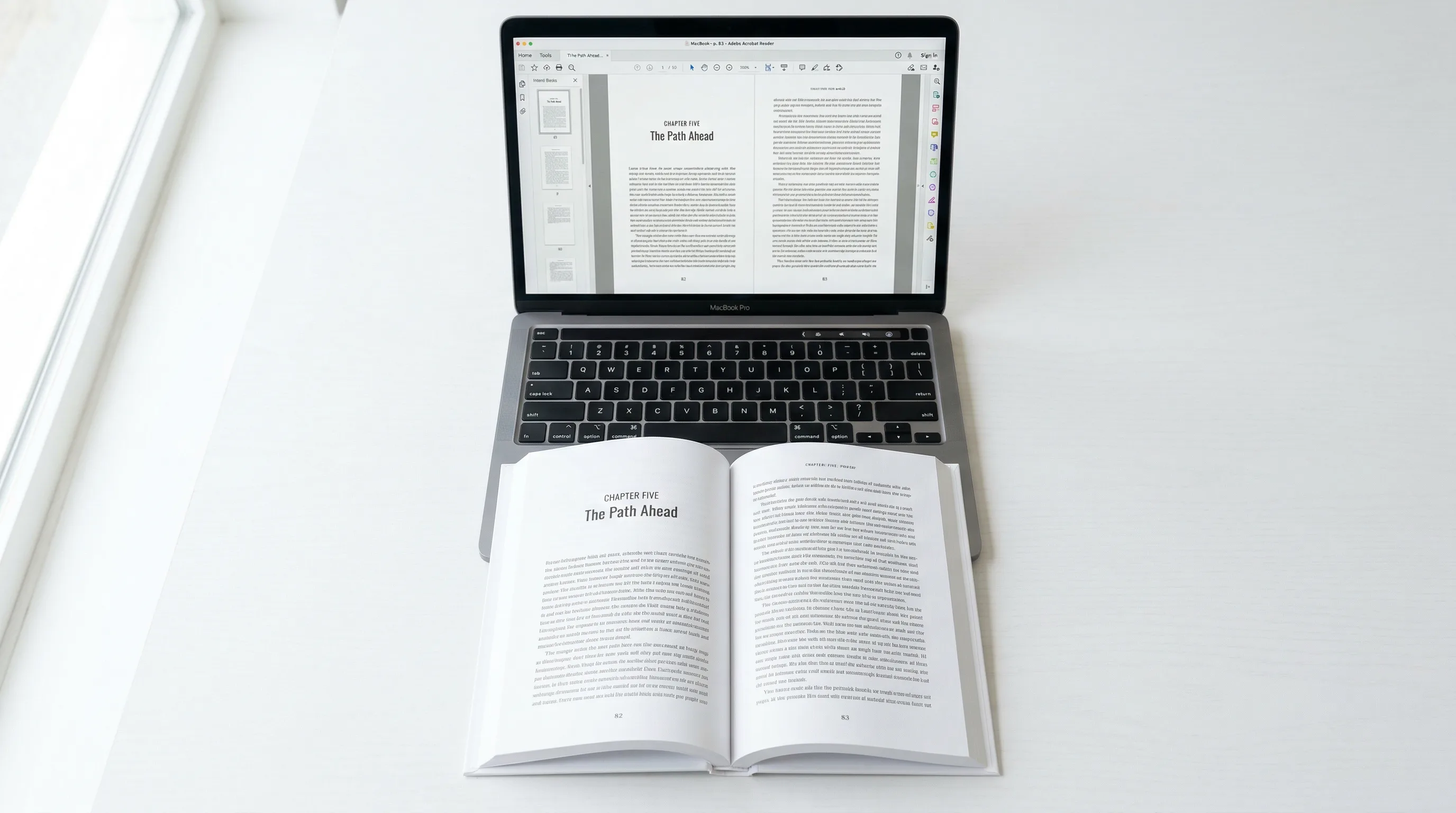
Print formatting is more rigid. You're dealing with physical pages, fixed dimensions, and ink on paper. Nothing reflows.
File Format
- All fonts must be embedded. If a font isn't embedded, KDP swaps in a default — and that wrecks your layout.
- Images should be 300 DPI minimum.
- Color space: CMYK preferred for color interiors. RGB is accepted but colors may shift during printing.
- No transparency in images (flatten all layers).
- No password protection, security settings, or form fields.
- Pages must match your selected trim size exactly.
Trim Sizes
KDP offers a range of trim sizes for paperbacks:
| Trim Size (inches) | Common Use |
|---|---|
| 5 x 8 | Fiction, general nonfiction |
| 5.06 x 7.81 | Standard trade |
| 5.25 x 8 | Fiction, memoirs |
| 5.5 x 8.5 | Popular nonfiction, business books |
| 6 x 9 | Nonfiction, textbooks, manuals |
| 6.14 x 9.21 | Standard trade (US) |
| 6.69 x 9.61 | Larger nonfiction |
| 7 x 10 | Textbooks, workbooks |
| 7.44 x 9.69 | Technical manuals |
| 7.5 x 9.25 | Children's, cookbooks |
| 8 x 10 | Workbooks, activity books |
| 8.25 x 6 | Landscape option |
| 8.25 x 8.25 | Square format |
| 8.5 x 8.5 | Square, larger |
| 8.5 x 11 | Full letter size, manuals |
Margin Requirements
KDP enforces minimum margins that depend on page count. The gutter (inside margin) gets bigger for thicker books because the pages curve more at the spine.
| Page Count | Inside Margin (Gutter) | Outside Margin | Top Margin | Bottom Margin |
|---|---|---|---|---|
| 24-150 pages | 0.375 in | 0.25 in | 0.25 in | 0.25 in |
| 151-300 pages | 0.5 in | 0.25 in | 0.25 in | 0.25 in |
| 301-500 pages | 0.625 in | 0.25 in | 0.25 in | 0.25 in |
| 501-700 pages | 0.75 in | 0.25 in | 0.25 in | 0.25 in |
| 701-828 pages | 0.875 in | 0.25 in | 0.25 in | 0.25 in |
Bleed vs. No-Bleed Settings
- No bleed: For text-only books or books where no images touch the page edge. This is the default for most fiction and nonfiction.
- Bleed: Required when any image, graphic, or background color extends to the page edge. With bleed enabled, your PDF pages need to be 0.125 inches larger on the top, bottom, and outside edge. So a 6 x 9 book with bleed needs 6.125 x 9.25 inch pages. KDP trims the excess during printing.
Not sure? Go with no bleed. It's simpler.
Page Count Requirements
- Minimum: 24 pages
- Maximum: 828 pages (for most trim sizes)
- Page count must be even (KDP adds a blank page if needed)
- Color interiors have a lower max page count than black-and-white
Paper Types
Two options:
- White paper: Brighter, higher contrast. Best for books with images or color content.
- Cream paper: Warmer tone, easier on the eyes for long reads. Standard for fiction and text-heavy nonfiction.
KDP Hardcover Formatting
Hardcover Trim Sizes
The selection is more limited than paperback:
| Trim Size (inches) |
|---|
| 5.5 x 8.5 |
| 6 x 9 |
| 6.14 x 9.21 |
| 7 x 10 |
| 8.25 x 11 |
Case Laminate vs. Dust Jacket
Two binding options:
- Case laminate: The cover image is printed directly onto the hard case. No removable jacket. This is the more popular choice — simpler, more durable, and readers don't lose the jacket.
- Dust jacket: A removable paper jacket wraps around a plain hard case. Feels more "traditionally published" but costs more per unit and has a higher minimum list price.
Both use the same interior PDF. The only difference is the cover file specs. Case laminate covers include front, spine, and back in one wrap-around image. Dust jackets add flap areas.
Step-by-Step KDP Formatting Workflow
Here's the full workflow for getting your manuscript formatted and uploaded, whether you're doing ebook, paperback, or both.
Step 1: Choose Your Trim Size (Print) or Confirm Ebook Specs
- Fiction: 5.25 x 8 or 5.5 x 8.5
- Nonfiction: 6 x 9
- Workbooks/manuals: 7 x 10 or 8.5 x 11
Step 2: Set Margins According to KDP Requirements
Estimate your final page count, then set margins based on the table above. Go beyond the minimums:
- Gutter/inside: Add at least 0.125 inches to the minimum
- Outside, top, bottom: 0.5 inches is comfortable
- Headers/footers: Keep page numbers at least 0.25 inches from the page edge
Step 3: Format Your Manuscript
Apply consistent formatting throughout:
- Heading styles: Use your word processor's built-in heading hierarchy (Heading 1 for chapters, Heading 2 for sections). This matters for generating the table of contents.
- Body text: One font, consistent size (typically 11-12pt for print), uniform paragraph spacing.
- Chapter openers: Start each chapter on a right-hand (recto) page for print. Add a chapter title style with extra spacing above.
- Front and back matter: Add title page, copyright page, TOC, and back matter pages.
- Images: Place them inline, make sure they're 300 DPI, and confirm they fit within your safe area.
Step 4: Export to the Proper Format
- For print (paperback/hardcover): Export to PDF with all fonts embedded, images at full resolution, and pages matching your exact trim size. Use PDF/X-1a or PDF/A for best compatibility.
- For ebook: Export to EPUB. Run it through an EPUB checker (like EPUBCheck) to catch structural errors before uploading.
Step 5: Upload to KDP and Use the Previewer
Step 6: Fix Issues Flagged by KDP's Automated Checker
Common flags include:
- Images below minimum resolution
- Content extending beyond margin-safe areas
- Missing or broken table of contents
- PDF pages that don't match the selected trim size
- Fonts not embedded in the PDF
Fix issues in your source file, re-export, and re-upload. Don't try to fix things directly in the PDF — always go back to the source.
Common KDP Formatting Errors (and How to Fix Them)
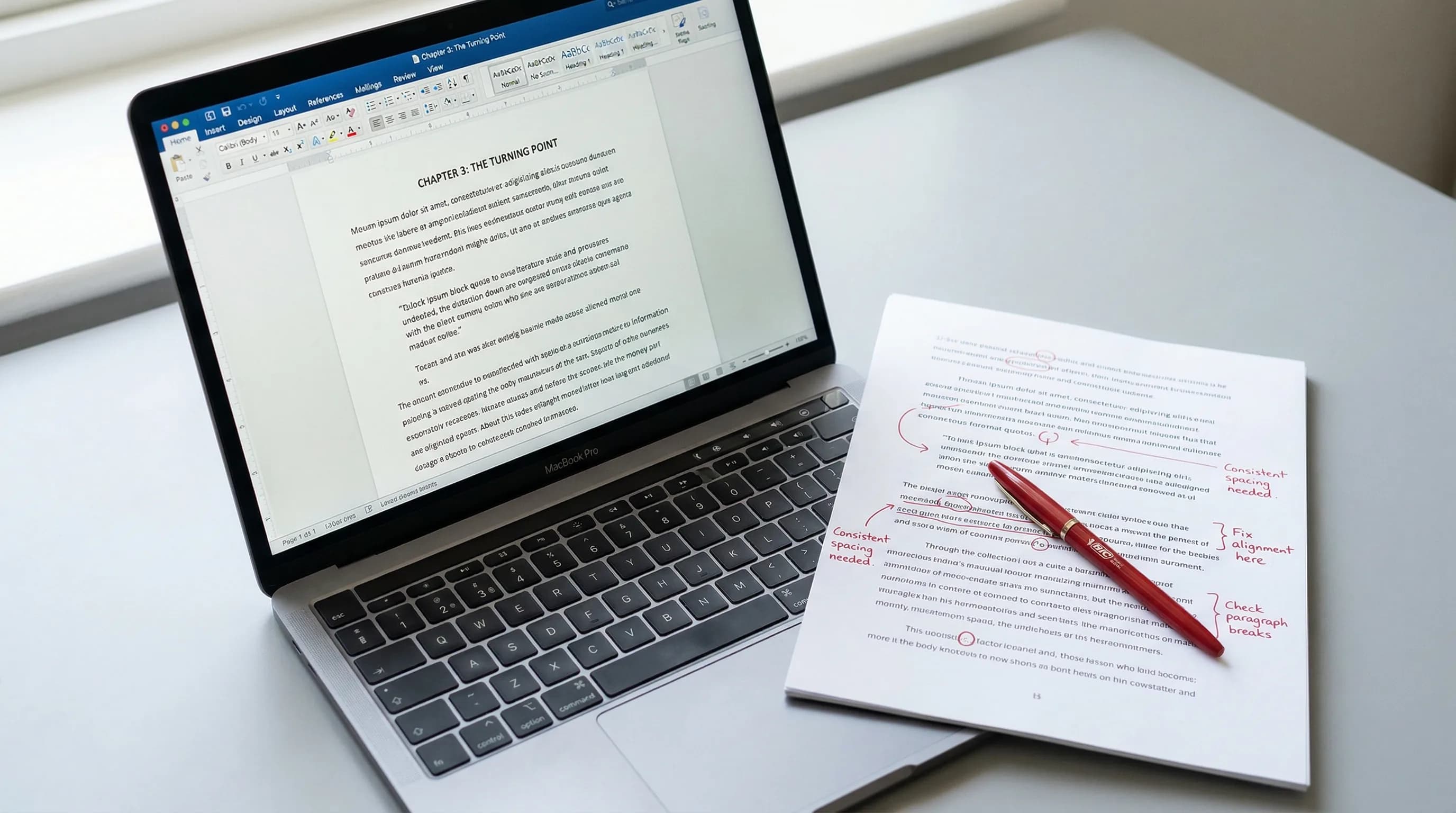
These are the errors that delay launches and frustrate authors the most.
1. Images Too Low Resolution
2. Text Extends Into Margins
3. Missing or Incorrect Table of Contents
4. Blank Pages in Wrong Places
5. Fonts Not Embedded in PDF
How to Use KDP Previewer
KDP Previewer is a free tool from Amazon that shows you how your book will look on actual devices. It's available online (inside the KDP dashboard) and as a desktop app.
- After uploading your file, click "Launch Previewer" on the content setup page.
- For ebooks, flip through different device views — Kindle Paperwhite, Kindle Fire, iOS, Android. Your formatting should hold up on all of them.
- For print books, the previewer shows a page-by-page rendering. Check:
- First and last pages for unwanted blanks
- Chapter openings for correct positioning
- Images for resolution and placement
- Headers and footers for consistency
- Table of contents for correct page numbers
- Use the thumbnail view to scan all pages quickly. Look for anything that looks off — misaligned text, missing images, layout shifts.
- Check the gutter side on both left and right pages. Text shouldn't feel cramped near the spine.
Don't skip this step. Many formatting issues only show up in the previewer — you won't catch them in your word processor or PDF reader.
KDP Formatting Specs: Quick Reference
| Spec | Ebook | Paperback | Hardcover |
|---|---|---|---|
| File format | EPUB (recommended), DOCX, KPF, HTML | PDF only | PDF only |
| Min pages | N/A | 24 | 75 |
| Max pages | N/A | 828 | 550 |
| Image resolution | 300 DPI recommended | 300 DPI minimum | 300 DPI minimum |
| Color space | RGB | CMYK preferred | CMYK preferred |
| Font embedding | Limited (headings only) | All fonts required | All fonts required |
| TOC required | Yes (HTML + NCX/NAV) | Recommended | Recommended |
| Bleed option | N/A | Yes (adds 0.125 in) | Yes (adds 0.125 in) |
| Paper types | N/A | White or cream | White or cream |
| Cover types | N/A | Matte or glossy | Case laminate or dust jacket |
Format Your Book for KDP Without the Headaches
KDP formatting is pretty methodical. Once you know the specs, it's about applying them and checking your work in the previewer. The hard part isn't understanding the requirements — it's the export process. Getting fonts to embed, images to hold their resolution, margins to match your trim size, EPUB structure to validate clean.
However you handle formatting, the specs in this guide are your checklist. Work through them step by step and always check your book in KDP Previewer before you hit publish.
Tomas Krajnik
“KDP formatting is where most self-publishers stumble. Get your margins, bleed, and file type right the first time and you'll save yourself weeks of rejected uploads.”
Recommended Reading
How to Publish on Amazon KDP: The Complete Guide to Self-Publishing Your Book (2026)
Learn how to publish on Amazon KDP step by step. Cover account setup, formatting, pricing, royalties, keywords, and more to launch your book.

KDP Cover Template: The Complete Guide to Getting Your Book Cover Right
Learn how to download and use the KDP cover template for paperback and ebook covers. Step-by-step guide to specs, dimensions, and common mistakes.
Publishing on Kindle: The Complete Guide to Your First Ebook (2026)
Step-by-step guide to publishing on Kindle. Cover KDP setup, formatting, pricing, Kindle Unlimited, marketing, and common mistakes to avoid.