How to Publish on Amazon KDP: The Complete Guide to Self-Publishing Your Book (2026)
Learn how to publish on Amazon KDP step by step. Cover account setup, formatting, pricing, royalties, keywords, and more to launch your book.


Amazon KDP killed the gatekeepers. No query letters. No rejection slips. No waiting a year and a half to maybe see your book on a shelf.
If you have a finished manuscript, you can put it on Amazon and have it available to millions of readers within 72 hours. That's it. That's the pitch.
But there's a right way and a wrong way to do it. The platform itself is simple — the trick is showing up with a book that's actually ready. Let's walk through the whole thing.
What Is Amazon KDP (Kindle Direct Publishing)?
KDP is Amazon's free self-publishing platform. You upload your manuscript, add a cover, set a price, and Amazon sells your book worldwide. No publisher needed.
It supports three formats:
- Ebooks (Kindle editions)
- Paperbacks (print-on-demand)
- Hardcovers (print-on-demand)
For physical books, Amazon prints and ships each copy when someone orders. For ebooks, they deliver the file. You never touch inventory. You earn a royalty on every sale.
KDP started in 2007 as the Digital Text Platform, got rebranded, and now dominates self-publishing. There are other options, but this is the one that moves the needle.
KDP by the Numbers: Why Amazon Dominates Self-Publishing
Here's why almost every self-publisher starts with KDP:
- Amazon controls roughly 70-80% of the US ebook market and a big chunk of print sales online.
- KDP is available in 13 marketplaces — US, UK, Germany, France, Spain, Italy, Japan, Brazil, Canada, Mexico, Australia, India, and the Netherlands.
- Over a thousand indie authors earn six figures or more per year through KDP, per Amazon's own numbers.
- Kindle Unlimited has over 4 million titles and pays authors per page read — a whole separate income stream.
- Print-on-demand means zero upfront printing costs. No garage full of boxes.
Nothing else comes close to this kind of reach and built-in reader traffic. That doesn't mean you should only publish on Amazon (more on that later), but it should be your starting point.
Before KDP: Preparing Your Book for Publishing
This is the part most people rush past. KDP is the distribution platform — but you need a finished, formatted, professional-looking book before you upload anything.
Here's the pipeline:
- Write and edit your manuscript
- Format for KDP specifications (interior layout, margins, trim size)
- Design a professional cover (front, spine, and back for print; front only for ebook)
- Export to the correct file formats (PDF for print, EPUB or KPF for ebook)
- Upload to KDP and configure your listing
Now let's get into the KDP process itself.
Step 1: Create Your KDP Account
What You Need
You'll need:
- Your legal name (or business name if you're publishing under an entity)
- Address
- Bank account information for royalty payments
- Tax information (see below)
The Tax Interview
Before you can publish, Amazon makes you complete a tax interview. It's an online form — not an actual conversation with a person.
- You'll provide your SSN or EIN
- Amazon files a 1099 at the end of each tax year
- You'll fill out a W-8BEN form (individuals) or W-8BEN-E (entities)
- If your country has a tax treaty with the US, you can reduce withholding from 30% down to as low as 0%
- You'll need your country's tax identification number
Do this before publishing. If you skip it, Amazon withholds 30% of your US royalties by default.
Setting Up Your Payment
KDP pays royalties about 60 days after the end of each month. Payments go via direct deposit in most countries, or by check/wire transfer where that's not available.
You can set different bank accounts for different marketplaces — EUR payments to a European bank, USD payments to a US bank, and so on.
Step 2: Prepare Your Manuscript
Your manuscript needs to meet Amazon's formatting requirements. What those are depends on whether you're doing an ebook, paperback, or hardcover.
Ebook Manuscript Requirements
KDP accepts these file formats for ebooks:
- EPUB (recommended)
- KPF (Kindle Package Format — made with Kindle Create)
- DOCX (works but gives you less control)
- PDF (not recommended for ebooks — reflowable text works better)
Go with EPUB if you can. It gives you the most control and produces the cleanest result on Kindle devices and apps.
A few things to keep in mind:
- Use a reflowable layout (text adapts to screen size) for most books
- Fixed layout works better for illustrated books, children's books, or cookbooks
- Embed fonts if you're using anything beyond standard serif/sans-serif
- Include a clickable table of contents
- Images should be at least 300 DPI in JPEG or PNG format
Paperback and Hardcover Manuscript Requirements
- Trim sizes from 5" x 8" to 8.5" x 11" (and several others)
- Most popular: 6" x 9" (nonfiction) and 5.5" x 8.5" or 5" x 8" (fiction)
- Margins vary by page count — more pages need a wider gutter (inner margin) because the spine curves
- Bleed settings if your content goes to the edge of the page (common for image-heavy books)
- Minimum 24 pages for paperback, 75 pages for hardcover
- Maximum 828 pages for paperback, 550 pages for hardcover
If you're using Authorio, it handles interior formatting and exports to KDP-ready PDF and EPUB — no wrestling with margins and trim sizes.
Step 3: Design Your Book Cover
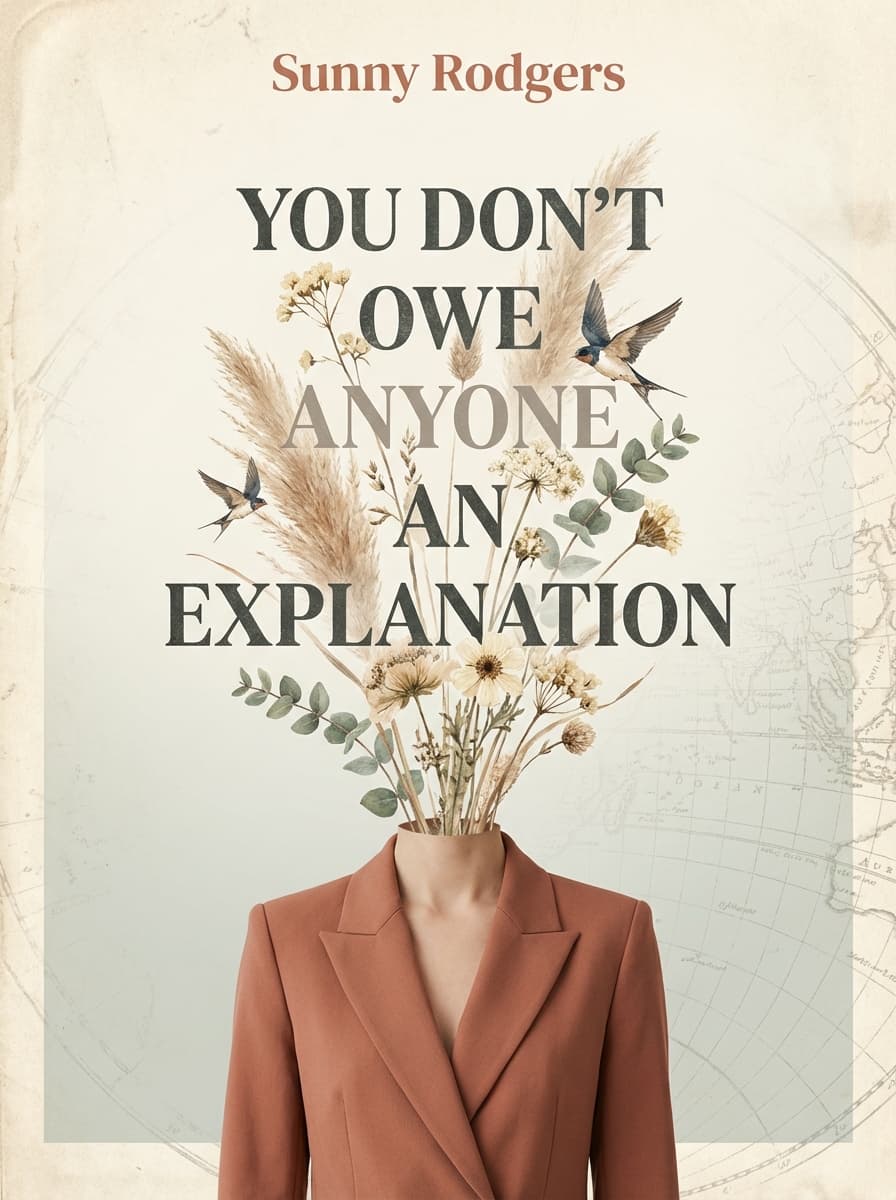
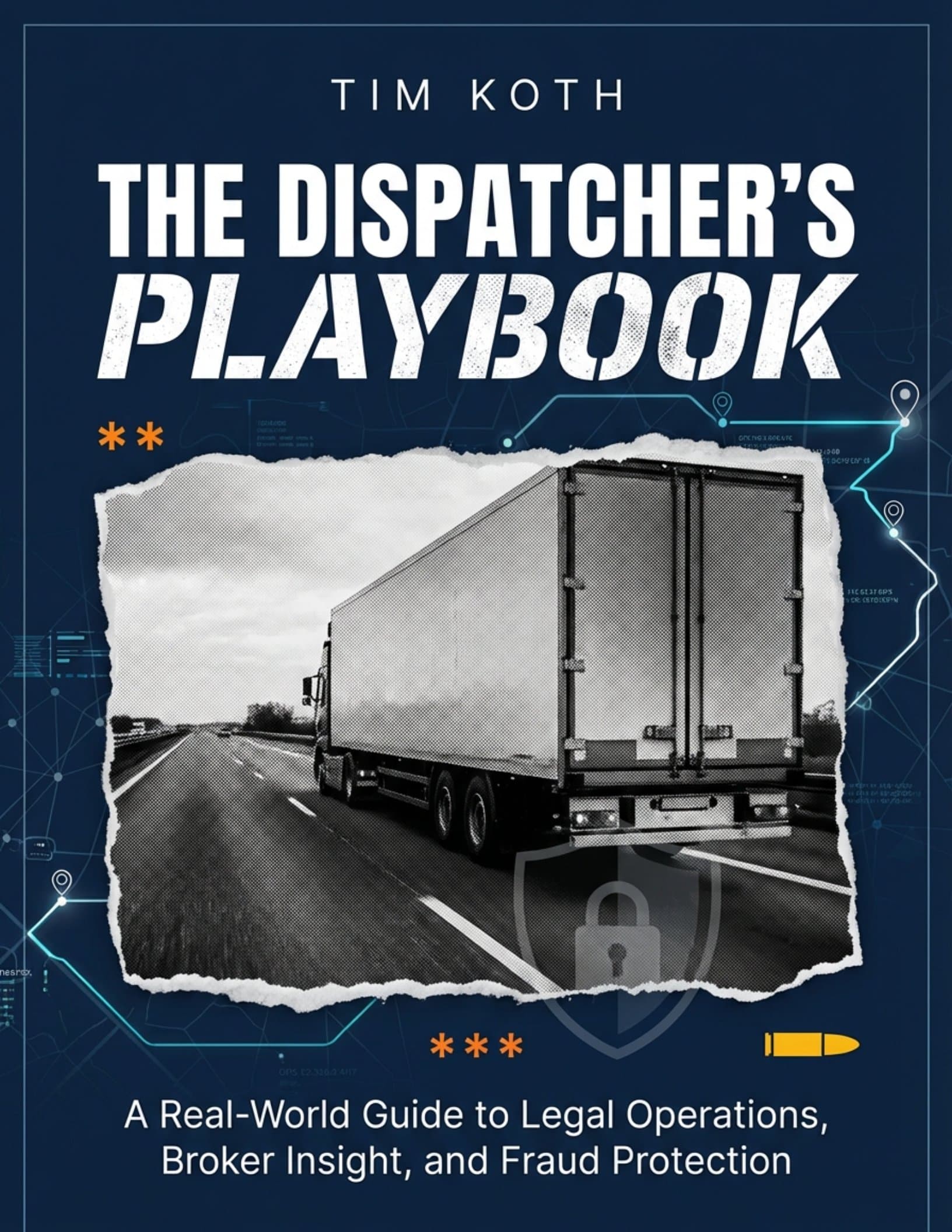
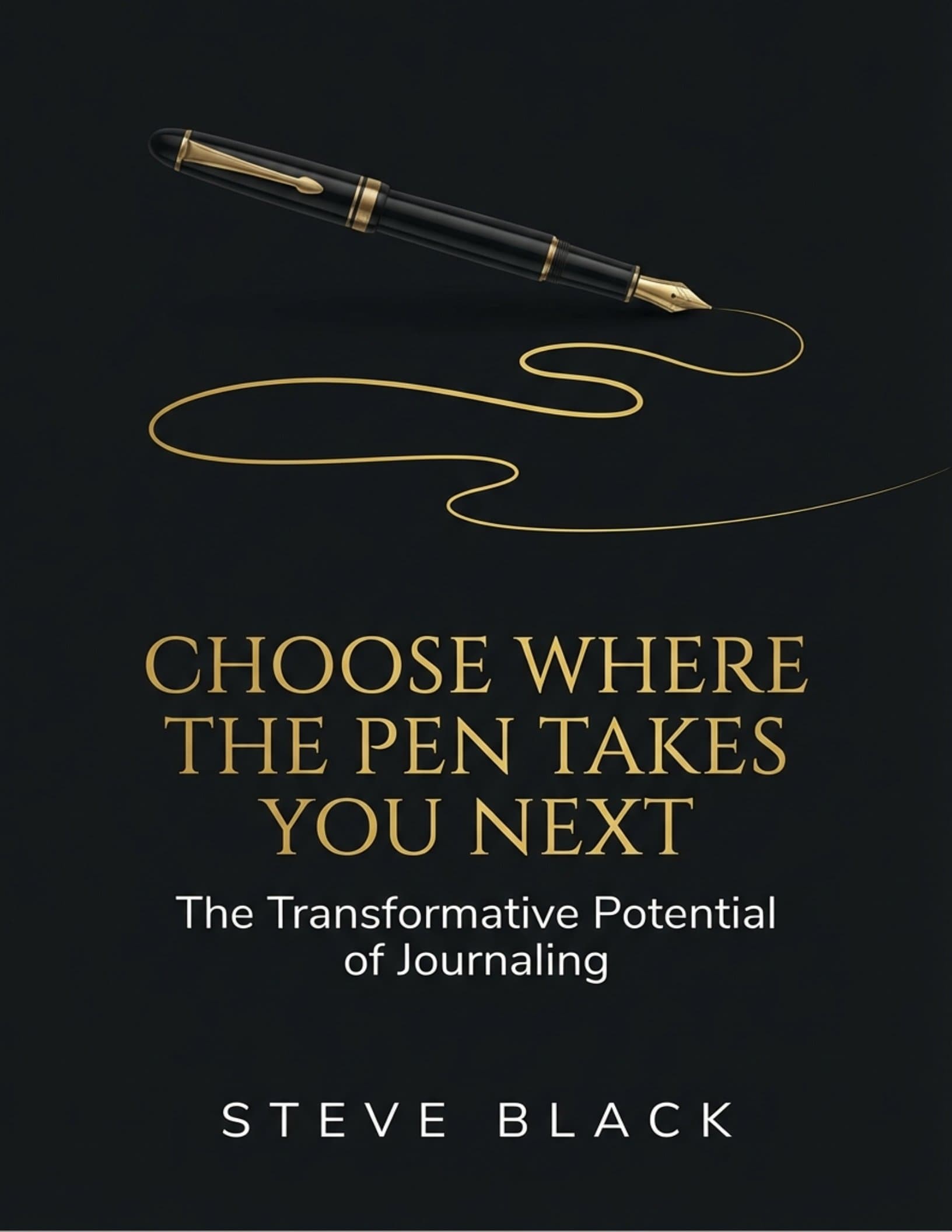
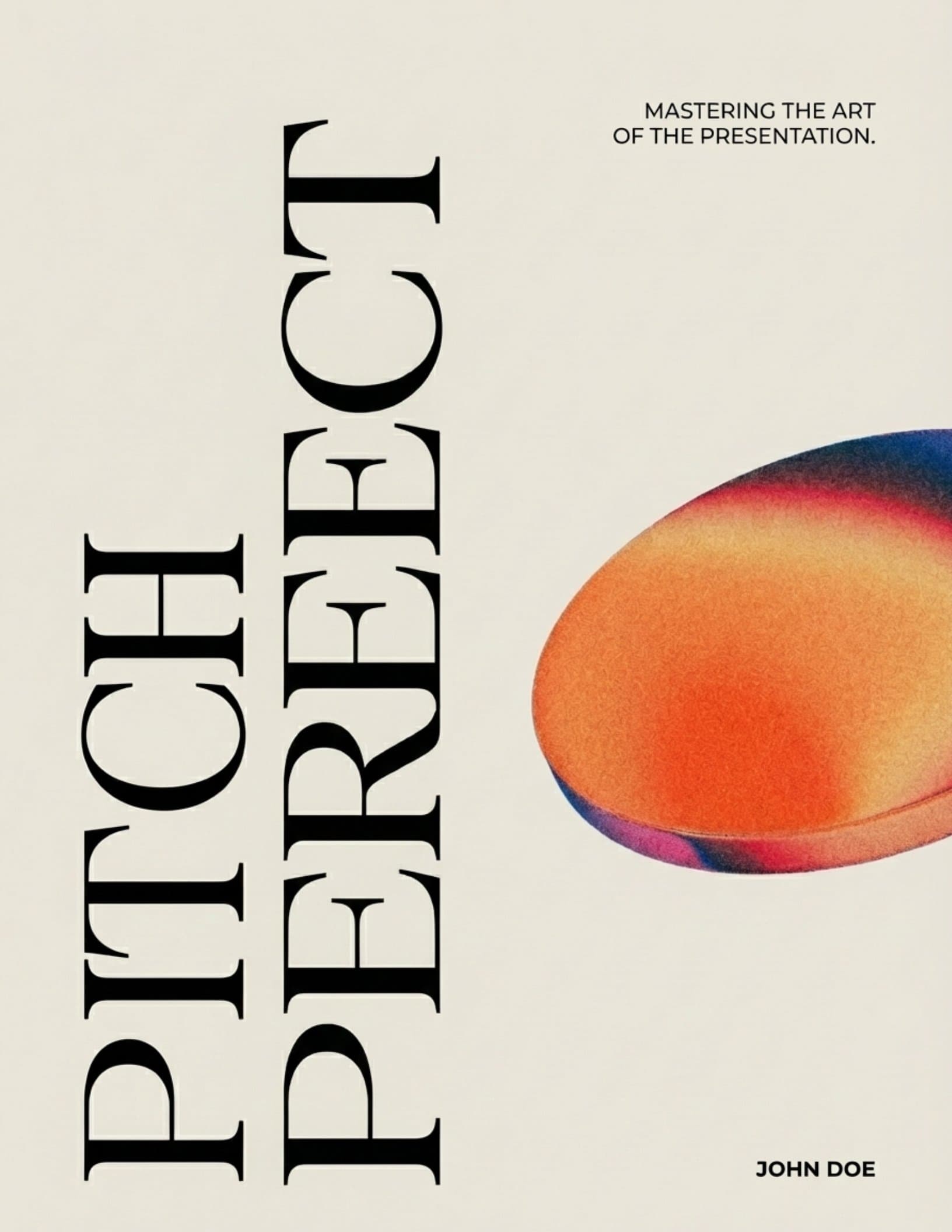
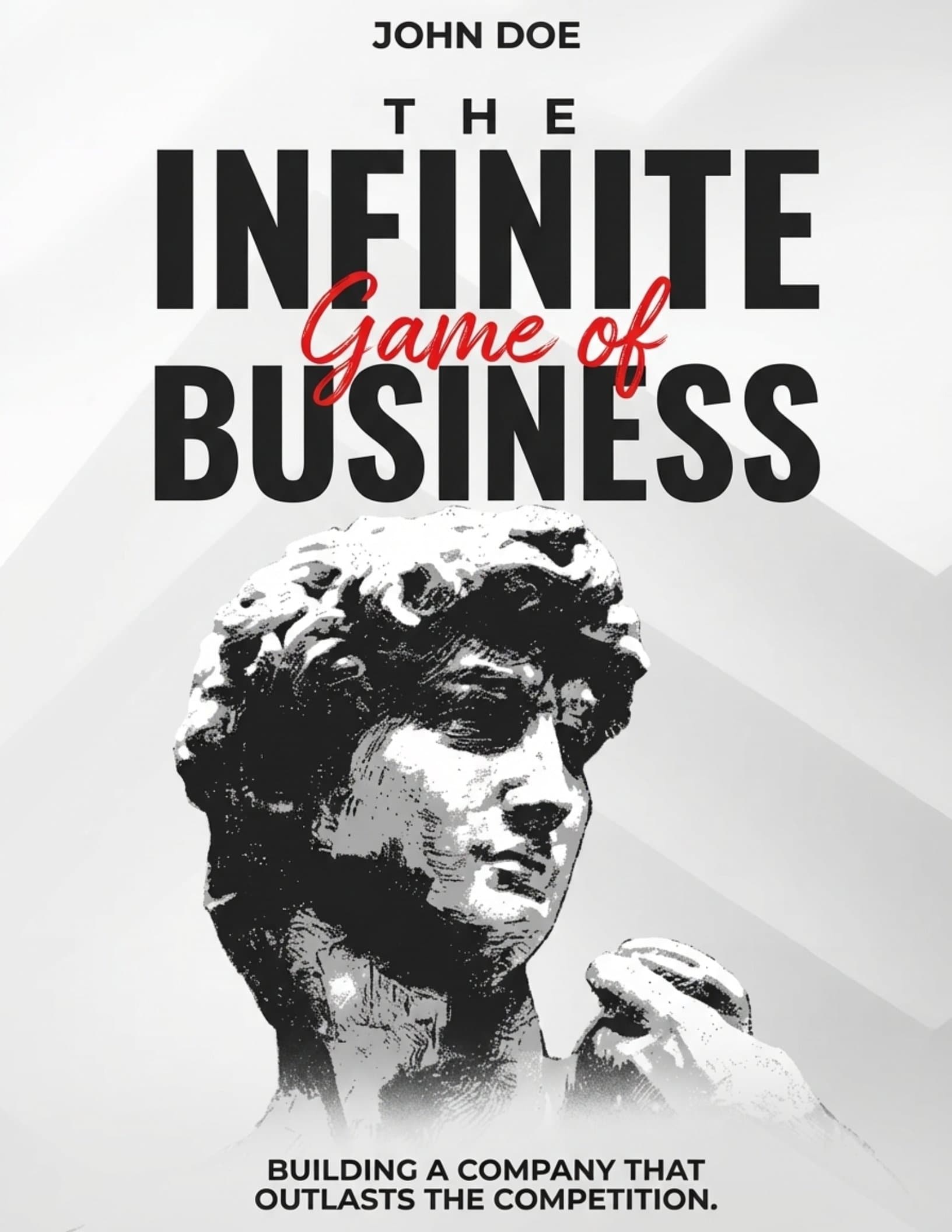
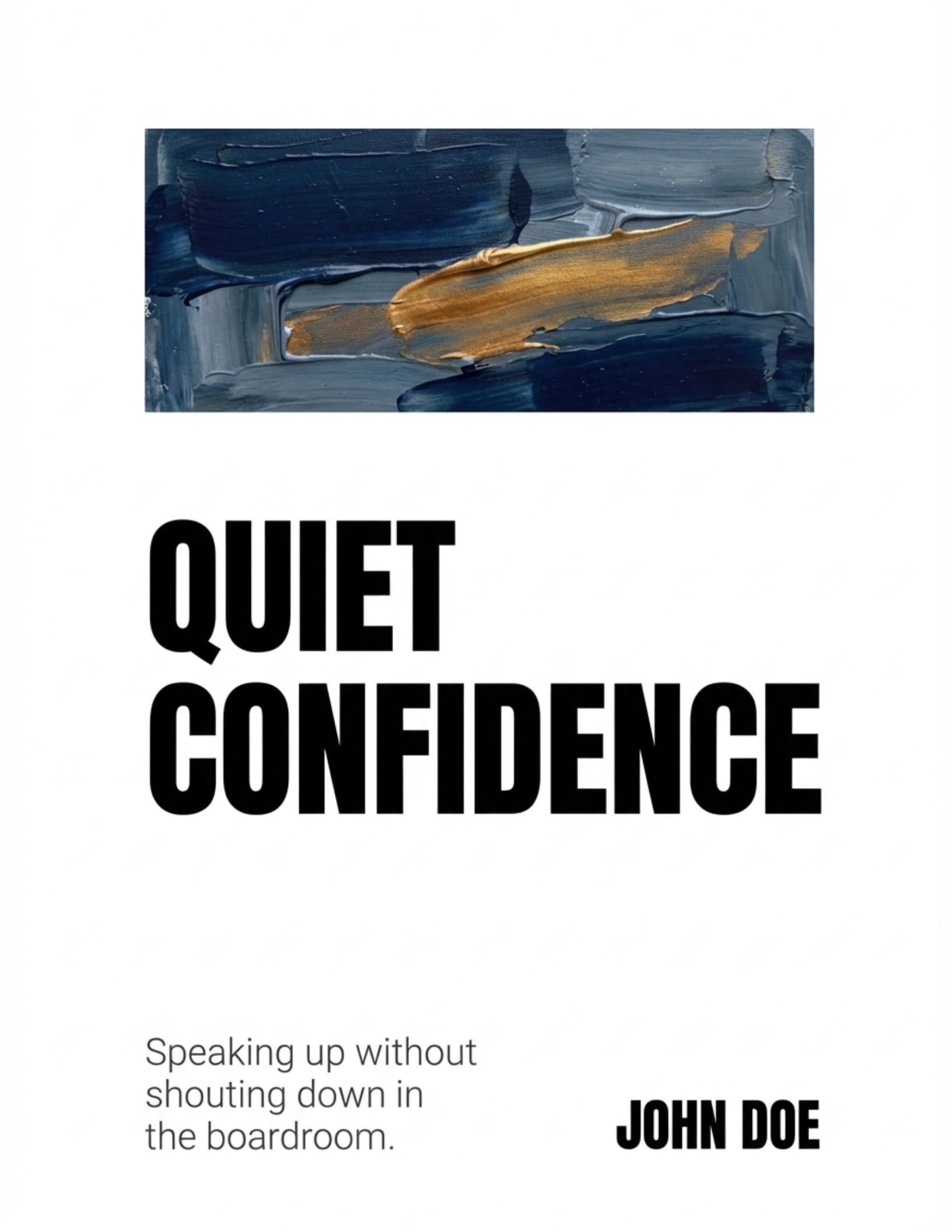
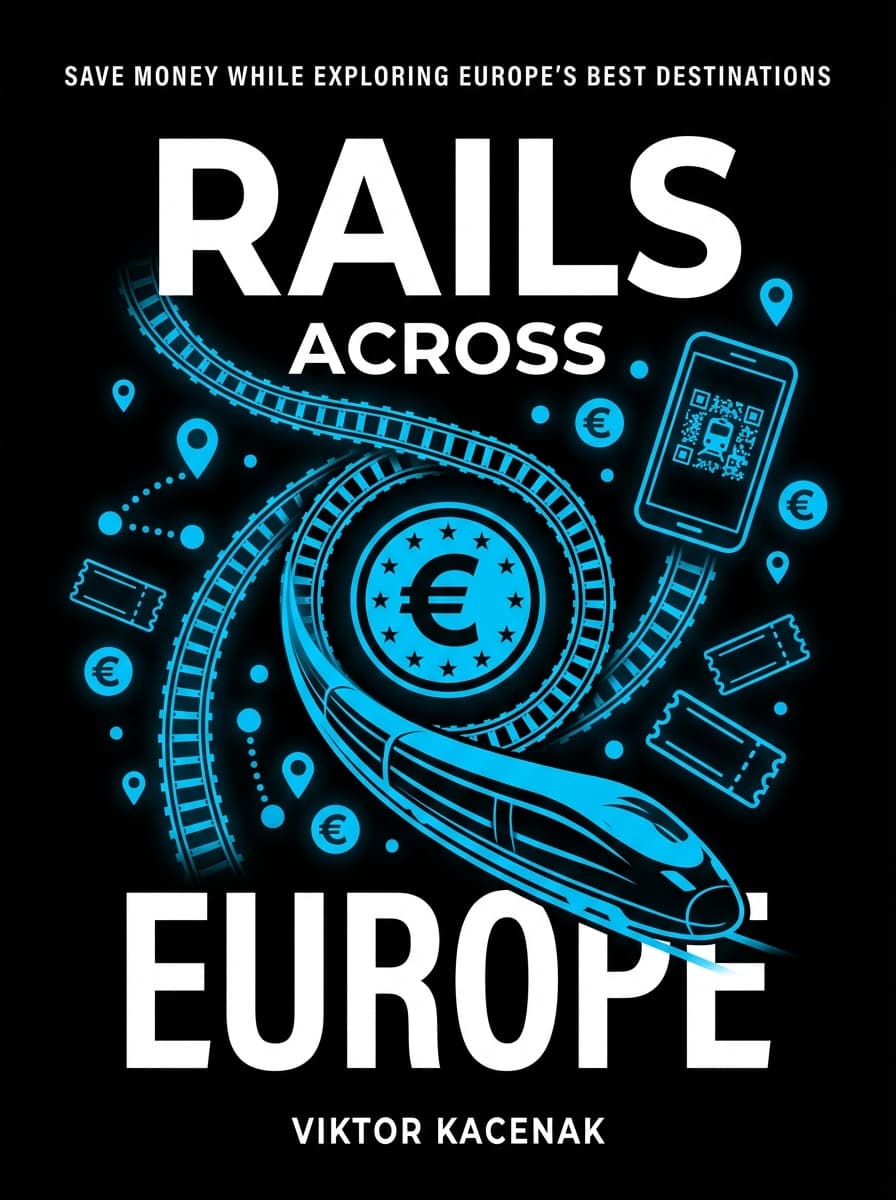
Your cover is the single most important marketing piece for your book. On Amazon, it shows up as a tiny thumbnail — about 1.5 inches tall in search results. It needs to be bold, readable, and genre-appropriate at a glance.
Ebook Cover Specifications
- Ideal dimensions: 2,560 x 1,600 pixels (height x width)
- Minimum: 1,000 x 625 pixels
- Aspect ratio: 1.6:1 (height to width)
- File format: JPEG or TIFF
- Color space: RGB (not CMYK)
- Maximum file size: 50 MB
Paperback and Hardcover Cover Specifications
- Spine width depends on page count and paper type (white or cream)
- Amazon has a Cover Calculator that generates a template with exact dimensions for your book
- The file must be a PDF at 300 DPI minimum
- Include 0.125-inch bleed on all edges
Step 4: Set Up Your Book on KDP
With your manuscript and cover ready, log into KDP and click "Create" to start a new title. You'll choose between Kindle eBook, Paperback, or Hardcover. You can create all three for the same book — more on that in a minute.
Book Details
Here's what the setup screen asks for:
- Open with a hook that speaks to the reader's problem or desire
- Summarize what the book covers (bullet points work well)
- Include a brief author bio or credibility statement
- End with a call to action
ISBN and Imprint
- Ebooks don't need an ISBN. Amazon assigns a free ASIN.
- Paperbacks and hardcovers need an ISBN. Amazon gives you a free one, or you can use your own from Bowker (US), Nielsen (UK), or your country's ISBN agency.
If you use Amazon's free ISBN, the publisher shows up as "Independently Published." Want your own imprint name? Buy your own ISBN.
Step 5: Choose Publishing Formats
You can publish the same book in multiple formats on KDP — and you should.
Ebook
- No printing costs
- Available instantly on all Kindle devices and apps
- Eligible for Kindle Unlimited (if you enroll in KDP Select)
- Customers can download a free sample before buying
Paperback
- Print-on-demand — Amazon prints each copy when ordered
- No upfront inventory costs
- Shows up on Amazon right alongside your ebook (they link automatically)
- Printing cost depends on page count, trim size, ink type, and paper type
- Having a paperback often boosts ebook sales too — readers see a "real" book and take it more seriously
Hardcover
- Also print-on-demand
- Higher perceived value — you can charge more
- Case laminate finish (glossy or matte)
- Minimum 75 pages
- Works best for reference books, gift books, and premium nonfiction
Should You Publish All Three Formats?
- Price-conscious readers buy ebooks
- People who want a physical book buy paperbacks
- Gift buyers and professionals often go for hardcovers
- Having all three makes your listing look more established
Each format needs different formatting. Your print PDF dimensions differ between paperback and hardcover, and ebook uses reflowable EPUB. If you're juggling multiple formats, a tool that exports all three from one source — like Authorio — saves a lot of time compared to formatting each one separately.
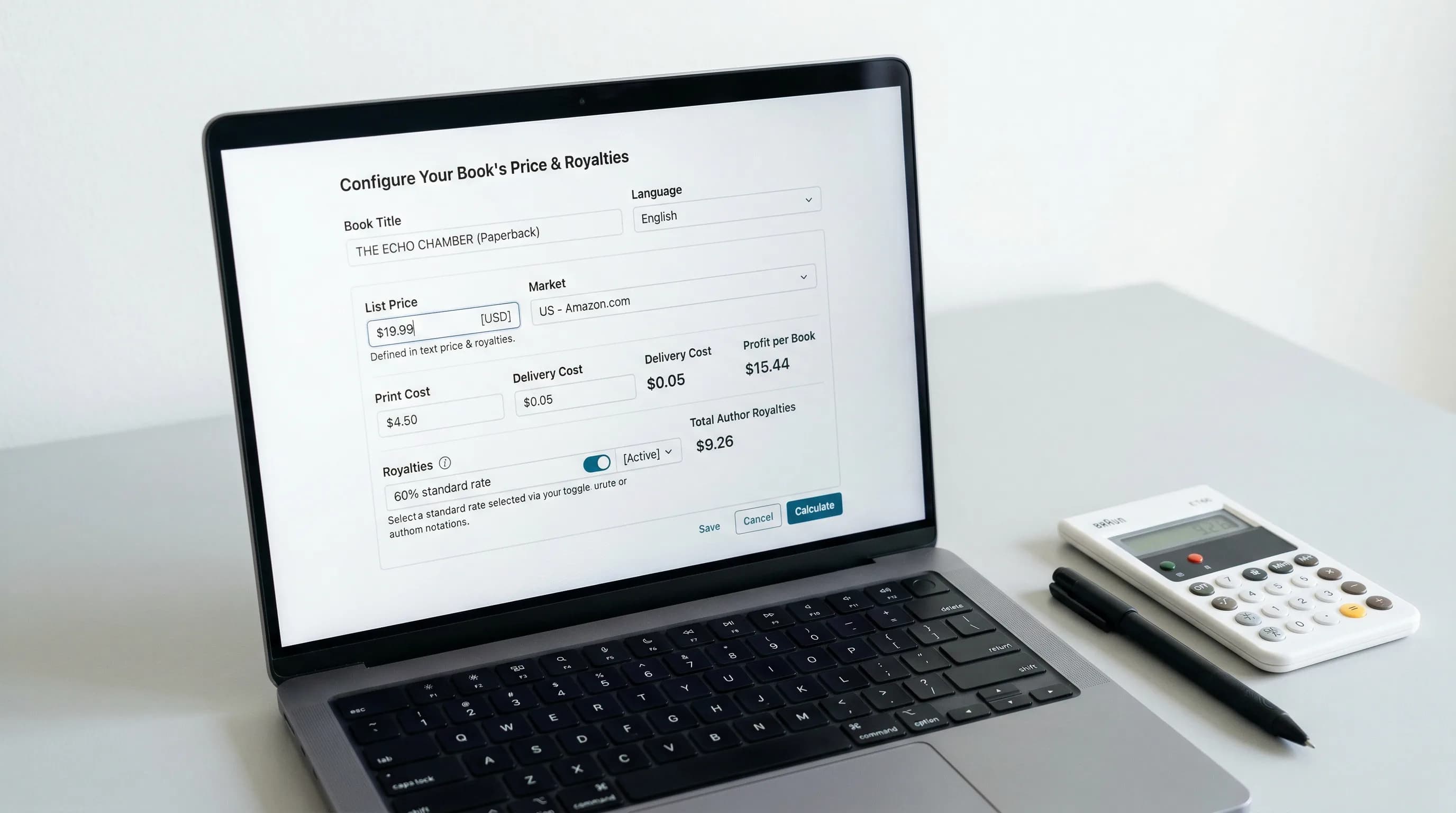
Step 6: Set Pricing and Royalties
This is where things get strategic. Your pricing affects your royalty rate, how competitive you are, and what marketing options you have.
Ebook Royalty Options
KDP has two royalty tiers for ebooks:
- Available for ebooks priced between $2.99 and $9.99
- A small delivery cost gets subtracted (based on file size — usually $0.01 to $0.15)
- Available in major marketplaces (US, UK, DE, FR, ES, IT, NL, JP, BR, MX, CA, IN, AU)
- Your ebook price must be at least 20% below the physical edition
- Applies to ebooks priced below $2.99 or above $9.99
- No delivery cost
- Available in all KDP marketplaces
| Price Point | Royalty Rate | Your Royalty (approx.) |
|---|---|---|
| $0.99 | 35% | $0.35 |
| $2.99 | 70% | $2.04 |
| $4.99 | 70% | $3.44 |
| $9.99 | 70% | $6.94 |
| $14.99 | 35% | $5.25 |
Look at those numbers. A $2.99 ebook at 70% earns you almost 6x more than a $0.99 ebook at 35%. And a $9.99 ebook earns more than a $14.99 one. The $2.99-$9.99 range is the sweet spot.
- Fiction (novel-length): $2.99-$5.99 is normal; $4.99 is a solid starting point
- Nonfiction (how-to, business, self-help): $4.99-$9.99; higher prices work when the content delivers clear value
- Short reads (under 25,000 words): $0.99-$2.99
- First-in-series: $0.99 or $2.99 to get readers hooked, then charge full price for later books
- Price pulsing: Temporarily dropping your price for promotions can drive sales volume and boost visibility in Amazon's algorithm
Paperback Pricing
Paperback royalties work like this:
Amazon takes about 40% of the list price (60% for expanded distribution). Printing cost depends on page count, trim size, ink type, paper type, and marketplace.
For a typical 200-page, 6" x 9", black-and-white paperback in the US, printing costs run about $3.50-$4.00. Price it at $14.99 and here's what happens:
- Amazon's 60% share: $8.99
- Printing cost: ~$3.75
- Your royalty: ~$2.25
- Check what comparable books in your category cost
- Most self-published paperbacks land between $9.99 and $17.99
- Color interiors (cookbooks, photography, children's books) cost a lot more to print — price accordingly
- Your paperback needs to be at least 20% more than your ebook to keep the 70% ebook royalty tier
Hardcover Pricing
Same formula as paperback, but printing costs are higher. A 200-page hardcover typically costs $7-$10 to print, so $19.99-$29.99 list prices are normal.
Expanded Distribution
For serious bookstore and library distribution, many authors pair KDP with IngramSpark — KDP for Amazon sales, IngramSpark for everything else.
Step 7: Publish and Go Live
Once you've filled in your book details, uploaded your files, and set pricing, hit "Publish Your Kindle eBook" (or paperback/hardcover).
What Happens Next
- Review period: Amazon checks your book against their content guidelines. Usually 24-72 hours for ebooks and 3-5 business days for print. Sometimes faster.
- Quality checks: They verify formatting, cover quality, and content policy. You'll get an email if anything's off (like a blurry cover or low-resolution images).
- Going live: Once approved, your book shows up on Amazon with a product page. You'll get a confirmation email.
First 30 Days — The Launch Window
Amazon's algorithm cares about velocity — how many sales you generate relative to your category. The first 30 days are your best shot at building momentum:
- Line up reviews beforehand. Send copies to beta readers and ask them to post honest reviews on or near launch day.
- Tell everyone you know. Email list, social media, personal network — drive those initial sales in the first week.
- Run a launch promotion. A temporary price drop combined with promo sites like BookBub (if you get accepted) can generate serious launch velocity.
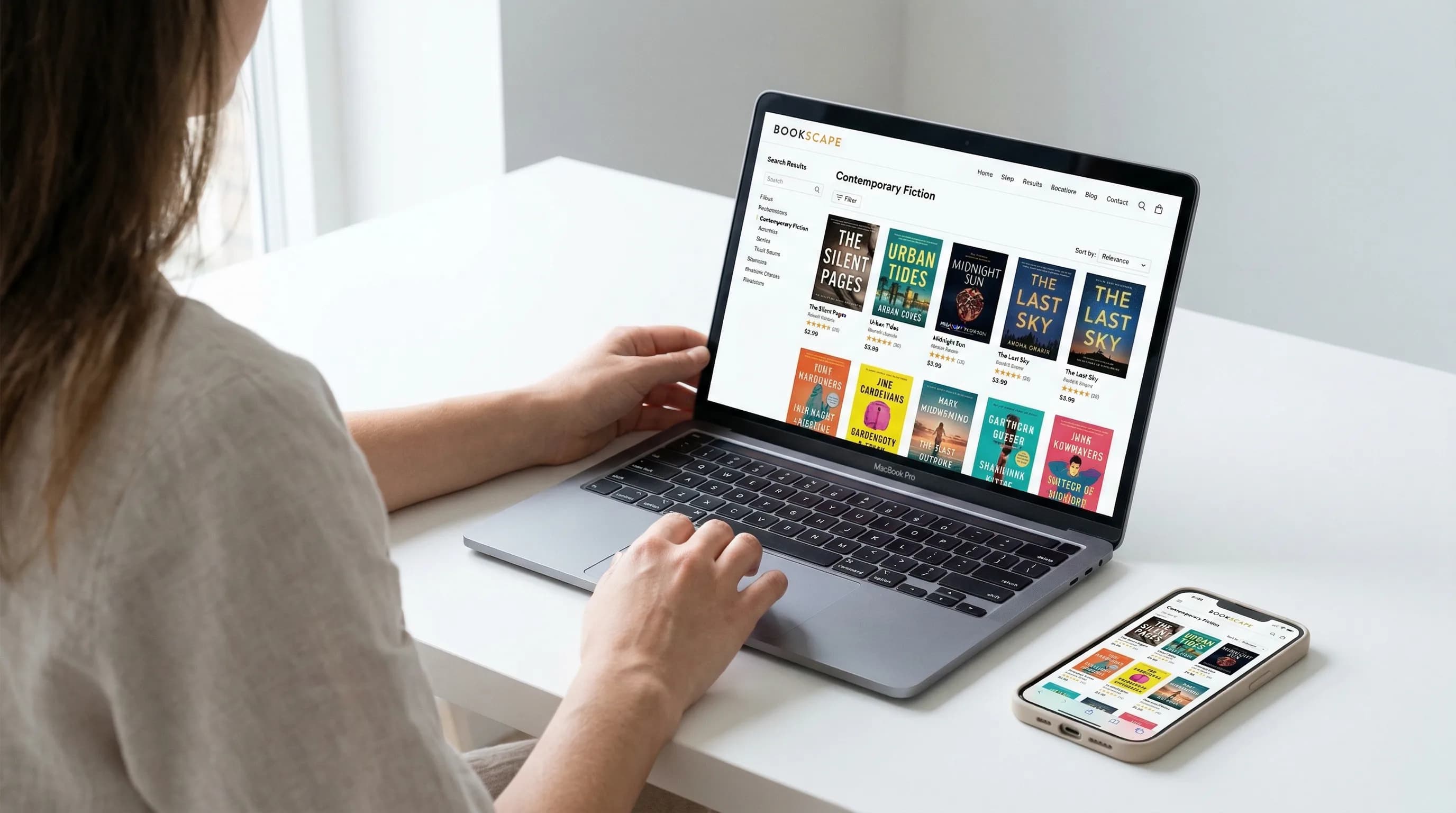
KDP Keywords and Categories: Getting Found on Amazon
The 7 Keyword Slots
- Use phrases, not single words. Not "cooking" — try "easy weeknight dinner recipes for beginners."
- Don't repeat words already in your title or subtitle — Amazon indexes those automatically.
- Think like a reader. What would someone type into Amazon's search bar looking for a book like yours?
- Use Amazon's search autocomplete for research. Start typing a term and see what Amazon suggests.
- Include related terms and synonyms. Book about "investing"? Also use "personal finance," "stock market," "wealth building."
- Avoid competitor names or trademarks — Amazon doesn't allow it.
- Fill all seven slots. Leaving any blank is leaving visibility on the table. This is one of the most common mistakes new publishers make.
- Amazon search bar autocomplete (free)
- Publisher Rocket (paid — built specifically for Amazon book keywords)
- Google Keyword Planner (free — good for understanding broader search demand)
Choosing Categories (BISAC Codes)
- Go specific. "Nonfiction > Business" is too broad. "Nonfiction > Business > Home-Based Businesses" is targetable.
- Check the bestseller rank of the #1 book in a category. Top book ranked at 50,000+? Low traffic. Top book under 5,000? Competitive but worth it.
- Make sure your book actually fits. Miscategorizing leads to the wrong readers and poor sales.
Getting Into Additional Categories
Beyond your initial three categories, you can request more by contacting KDP Support after publishing. Amazon also sometimes adds categories automatically based on your keywords.
Some authors end up in up to 10 categories by using keywords that match specific category browse nodes.
After Publishing: What to Do Next
Hitting publish isn't the finish line. It's the starting line. Here's what to focus on after your book goes live.
KDP Select and Kindle Unlimited
- Readers who borrow your book don't pay the list price
- You earn based on pages read (KENPC — Kindle Edition Normalized Page Count)
- The per-page rate fluctuates monthly, usually around $0.004 to $0.005
- A 300-page book read cover to cover earns roughly $1.20-$1.50 per borrow
- You're just starting out and Amazon is your main channel
- Your genre is popular in KU (romance, sci-fi, thriller, LitRPG)
- You have a series — KU readers tear through series, and page reads stack up fast
- You want KDP Select promo tools (Free Book Promotion and Kindle Countdown Deals)
- You already have readers across multiple platforms
- Your genre sells well outside KU (literary fiction, some nonfiction)
- You want revenue that doesn't depend on one platform
- You sell direct through your website at higher margins
You can change your enrollment every 90 days, so it's not permanent. Lots of authors start in KDP Select, build an audience, then go wide later.
Author Central
- A customizable author bio
- Author photo
- Links to your blog or website
- A page that pulls together all your books
- BookScan sales data (US only — shows estimated print sales from retailers beyond Amazon)
- Editorial reviews section
This page appears whenever someone clicks your name on any of your book listings. A polished profile builds trust and gets readers exploring your other titles.
Amazon A+ Content (Enhanced Product Descriptions)
- You need an Amazon Brand Registry account, or
- Apply through Author Central (access keeps expanding to more authors)
Instead of a wall of text, you can build a visual sales page with:
- Cover images from different angles
- Infographics about what the reader will learn
- Author photo and bio
- Pull quotes and testimonials
- Comparison with other books in your series
This can make a real difference in conversion rates.
Marketing Your KDP Book
Publishing a book and getting people to read it are two different things. Here are the main marketing channels:
- Sponsored product ads in Amazon search results and on competitor book pages
- Pay-per-click — you only pay when someone clicks
- Start with automatic targeting, then refine with manual keyword targeting
- Budget: $5-$10/day to start, then scale what works
- The gold standard for book promotions
- Very competitive (low acceptance rate)
- Can drive hundreds or thousands of sales in a single day
- Works best with temporarily discounted books
- The most valuable long-term asset for any author
- Offer a free chapter or bonus content in exchange for signups
- Promote new releases and deals directly to people who already know your work
- Show up where your readers hang out
- Share behind-the-scenes content, your writing process, expertise related to your topic
- Pick one or two platforms and do them well
- Recruit readers in advance who'll read an early copy and post reviews during launch week
- Early reviews are make-or-break for social proof
Common KDP Publishing Mistakes (and How to Avoid Them)
These are the mistakes that come up over and over again:
1. Wrong Pricing for the Royalty Tier
Price an ebook at $1.99 and you're in the 35% tier — $0.70 per sale. Bump it to $2.99 and you're in the 70% tier — $2.04 per sale. That's nearly 3x the earnings for one dollar more. Unless you have a specific reason (like a loss-leader first-in-series), price at $2.99 or above.
2. Poor Metadata
Your title, subtitle, description, and keywords are how readers find you. A vague title, empty subtitle, three-sentence description, and half-filled keyword slots? That's a recipe for invisibility. Treat your metadata like ad copy — because that's what it is.
3. Publishing Before Getting Reviews Lined Up
A book with zero reviews doesn't convert. Before you hit publish, have at least 5-10 people ready to read and review in the first week. Honest readers only — paid reviews violate Amazon's terms of service.
4. Not Using All 7 Keyword Slots
Every empty slot is a missed chance to show up in search. Fill all seven with specific, relevant phrases. There's no penalty for using them all and a real cost to leaving them blank.
5. An Amateur Cover
People absolutely judge books by their covers. A homemade-looking cover signals that the writing is probably amateur too. Invest in a professional cover or use a design tool that produces professional results. Don't cut corners here.
6. Skipping the Proof Copy
7. Ignoring Formatting Standards
8. Setting It and Forgetting It
Publishing isn't a one-and-done thing. Monitor your sales rank. Adjust keywords based on performance. Experiment with pricing. Run promotions. Keep building your audience. The authors who do well on KDP treat it as an ongoing business.
KDP Alternatives: Other Self-Publishing Platforms
KDP dominates, but it's not the only game in town.
IngramSpark
- Best for: Wide print distribution to bookstores and libraries
- Connects to the Ingram network — the same one traditional publishers use
- Books become orderable from indie bookstores, Barnes & Noble, and libraries
- Offers hardcover, paperback, and ebook distribution
- Setup fee per title (though they run frequent fee waivers)
- Many authors use IngramSpark for print distribution and KDP for Amazon sales
Draft2Digital
- Best for: Wide ebook distribution
- Gets your ebooks on Apple Books, Kobo, Barnes & Noble, Google Play, and more
- Free to use — takes a percentage of each sale
- Simple interface with decent formatting tools
- Now merged with Smashwords
Lulu
- Best for: Specialty print products (large format, color, photo books)
- Print-on-demand with distribution to Amazon, B&N, and others
- More specialty options (calendars, comic books, photo books)
- Has its own Lulu bookstore for direct sales
Should You Go Wide?
There's a real choice between Amazon exclusive (KDP Select) and wide distribution (multiple platforms).
Amazon exclusive gives you simplicity, KU page reads, and promo tools. Going wide gives you diversified income, less platform risk, and access to readers who don't shop on Amazon.
The Complete KDP Publishing Workflow
Here's the whole thing, start to finish:
- Nail down your concept, outline, and structure
- Write your manuscript (or use AI-assisted tools to speed things up)
- Edit and revise — self-edit first, then get outside feedback
- Design your cover (front only for ebook; full wrap for print)
- Format your interior for each format (ebook, paperback, hardcover)
- Export to KDP-ready files: EPUB for ebook, PDF for print
- Create your KDP account and complete the tax interview
- Set up your listing — title, description, keywords, categories
- Upload your manuscript and cover files
- Check formatting in the KDP Previewer
- Set pricing and royalties
- Order a proof copy (for print editions)
- Publish
- Activate your launch team for early reviews
- Announce to your email list and social media
- Set up Amazon Ads campaigns
- Consider KDP Select enrollment
- Claim your Author Central page
- Apply for A+ Content
- Monitor, optimize, and keep going
Frequently Asked Questions
Start Your KDP Publishing Journey
Publishing on KDP is straightforward. The platform is free, the process is clear, and the potential audience is massive. What separates authors who do well from those who don't isn't platform access — everyone has that. It's showing up with a professional book, smart metadata, the right price, and a plan to get the word out.
The hardest part isn't KDP itself. It's arriving at KDP with a polished, properly formatted book that's ready to hold its own. That's the work that happens before you ever log in.
Tomas Placko
“Publishing on KDP is surprisingly straightforward. The hard part isn't the platform — it's making sure your book is truly ready before you hit publish.”
Recommended Reading
KDP Cover Template: The Complete Guide to Getting Your Book Cover Right
Learn how to download and use the KDP cover template for paperback and ebook covers. Step-by-step guide to specs, dimensions, and common mistakes.
KDP Formatting: The Complete Guide to Publishing on Amazon in 2026
Learn KDP formatting for ebooks, paperbacks & hardcovers. Step-by-step specs for margins, trim sizes, file types & common errors to avoid.

Publishing on Kindle: The Complete Guide to Your First Ebook (2026)
Step-by-step guide to publishing on Kindle. Cover KDP setup, formatting, pricing, Kindle Unlimited, marketing, and common mistakes to avoid.